Multichat
Multichat is Lumio's unified chat experience. It merges messages from every connected platform - Twitch, YouTube, and Kick - into one stream with full emote rendering, moderation tools, reply threading, and a rich user-info card. It also shows live overlays for polls, predictions, hype trains, raids, ad breaks, and every other mod-facing event so you can react without ever leaving the chat view.
This guide walks through the Chat page, every moderation action, the user info
popup and mod notes, the /popout/chat window for OBS, and how to send messages
from Lumio directly.
Where to find it
- Sidebar: Stream → Chat (
/dashboard/chat). - Popout window:
/popout/chat. - Requires
chat:readand the Multichat feature on your plan.
Quick start
- Connect at least one streaming platform under Manage → Connections.
- Open Stream → Chat. Messages start appearing as soon as the WebSocket
connects - you will see the
Connectedindicator in the header. - Pick the platforms you want to see using the platform toggles at the top of the feed (Twitch / YouTube / Kick). Toggles let you read, send, or both per platform.
- Type a message in the footer input, press
Enterto send. Use the emote picker (the:)icon) to insert emotes from any of your connected sets. - Click any username to open the User Info Card for quick moderation context.
The Multichat feed
When you open Chat on the dashboard or in a popout, its header, input bar and optional viewer-list area keep their places while message rows load. The viewer list shows loading rows immediately when enabled. If you have hidden the header, input bar or viewer list, its loading frame respects that setting. When you switch to a platform or YouTube broadcast tab, the feed shows loading rows in place. No messages found. appears only once that load has finished and there really is nothing to show (or every row is filtered out). A live message that arrives during the load shows at once. With the Halloween look at Full strength the empty feed shows a floating ghost instead (see Preferences).
Message rows
Every row shows:
- Platform icon (Twitch purple, YouTube red, Kick green).
- User avatar (squared, next to the platform icon).
- Source-channel avatar (Twitch Shared Chat only) - a square, rounded-corner avatar with a channel-coloured ring channel avatar directly before the badges when the message crossed in from another channel's room during a shared-chat session, as on Twitch (see Twitch Shared Chat).
- Badges (broadcaster, moderator, VIP, subscriber, founder, artist, cheer).
Twitch and YouTube member badges use the image the platform sends. Where a
platform sends none, the badge is drawn in that platform's own artwork where
Lumio has it - a Kick channel owner shows Kick's pink-to-purple microphone
host badge, a Kick moderator shows Kick's blue sword moderator
badge and a Kick VIP shows Kick's gold crown VIP badge - and otherwise falls back to the generic icon. On Kick, a
subscriber shows the channel's own sub badge for their tier, and a chatter who
turned on their Kick level badge shows Kick's level image. The level badge
can be missing on a chatter's first message and appears from the next one. OG, Verified, Staff, Sidekick,
Bot and Sub Gifter show Lumio's own Kick-style badges, as does a subscriber or level
badge whose image is not known yet (the level plaque shows the number). Hover a
badge to see what it is, with its tier where the platform sends one -
Subscriber · 12 months,Sub Gifter · 50,Level 7. - Display name in the user's Twitch/YouTube color (falls back to a platform
default). On Twitch, a viewer whose display name is written in a non-Latin
script that differs from their login - for example
こさむんwith the loginkosamun- is shown asこさむん (kosamun), so you still see the handle to moderate or search by. An ordinary name is shown on its own, never in brackets: a display name that differs from the login only by capitalization (Cruex/cruex) or an accented Latin name such asÖmergets no bracket. This is Twitch-only - Kick and YouTube names never get it. Because the rule is applied as the chat renders, the bracket also appears on older messages in the history, and it shows the same way in the reply-preview header and the delete/moderation confirmation dialogs. - Message body with inline emotes rendered from Twitch, YouTube, Kick, 7TV, BTTV, and FFZ.
- Bits in a Twitch message (
Cheer100, or a channel's own cheermote such asxqcCheer500) render the way Twitch shows them: the cheermote graphic followed by the amount in the tier colour (grey 1, purple 100, teal 1000, blue 5000, red 10000), kept together on one line. The graphic is the same size as an emote and follows your Emote Size setting. Hover it to see the original word. If Lumio has no cheermote list for the channel, the word stays plain text. - GIFs posted with the Twitch GIF keyboard render inline as images, loaded
directly from the GIF provider (GIPHY) at their original URL. Click a GIF to open
it in a lightbox - a larger preview over a blurred backdrop showing the GIF's
name, ID, and URL (the ID and URL each with a copy button). Close the lightbox
with the
✕button, theEsckey, or a click outside it. GIFs never appear in a moderation placeholder or a deleted message. The Show GIFs setting (on by default) controls this: with it off, GIFs are not rendered and nothing is loaded from GIPHY. The setting is stored per browser. - Timestamp (localized).
- Action row on hover:
Reply,Copy,Delete, and the moderation dropdown.
Platform icons, avatars, badges, and timestamps are individually toggleable in the chat settings (gear icon).
Announcements and spotlight rows
Twitch announcements appear in the message feed in five colours: primary (Lumio's
fixed teal for /announce), blue, green, orange and purple. They keep their
colour, emotes, links and Shared Chat origin after a reload. Lumio reads these
messages but does not send announcements. Twitch does not let Lumio delete an
announcement, so its row has no Delete control. If its author is timed out or
banned, the row can still appear as deleted through the usual chat moderation
state. Twitch announcements cannot be pinned, so they have no Pin control.
A first-time chatter and a Twitch watch streak use spotlight rows in both full
and compact chat density. The full row carries the person's message and its
emotes and links; a watch streak also shows the streak count. Compact density
keeps an icon with a tooltip and omits the label. A bare domain such as
example.com is a clickable link in ordinary messages, announcements and
spotlight rows, subject to the same external-link warning as other links.
Announcements count as ordinary chat messages for keyword tabs and chat counts.
Pinned messages
The card above chat shows the current Twitch and Kick pins. The sender has an
avatar and badges; Pinned by shows the moderator's avatar and name without
badges. Sent at is when the sender wrote the message, and is omitted when
that time is unknown. With chat:userinfo, names in the card and pin event rows
open the same User Info Card as other chat names; without it they are plain text.
Members with chat:pin can pin an ordinary Twitch message, unpin it or set its
duration from 30 seconds to 30 minutes or until stream end. Twitch uses that
member's own moderator login for the action. Kick pins are visible but read-only
in Lumio and stay pinned until Kick removes them or the channel moves from live
to offline. A Twitch pin made on twitch.tv, even while the channel is offline,
appears after the next poll: within 10 seconds while live or 30 seconds while
offline. At stream end Lumio checks Twitch; a timed pin may remain. An action
refused as already pinned refreshes the card. You can collapse the card or
hide a pin locally without changing it on the platform.
Pin changes also appear as chat event rows, including pins made on twitch.tv without a stream. These rows show avatar and name without badges. The sentence itself is not a link; use ↓ To message at its right edge to jump to the pinned message. Pin event types have individual switches in Chat's Events settings and appear in the Twitch or Kick platform tab.
Emote and badge details
Hover an inline emote or badge to see a larger image and its details. On a phone, tap it to open a bottom sheet; tap outside, swipe down, use Back, or press Escape to close. A touch tap on a wider tablet opens a card beside the item. Tapping a user's name still opens the User Info Card.
An emote card shows its provider and, when known, whether it is animated or static, its creator, and whether it belongs to this channel, another channel, or a global set. An unknown animation state has no chip. A linked other-channel name can open Twitch or YouTube; 7TV, BTTV, and FFZ emotes can link to their provider page. Kick may identify another channel without a usable channel link. Use Copy name for chat text (Kick uses [emote:ID:NAME] when the ID is numeric) or Copy ID when an ID is available. A badge card shows the badge title, tier or months when known, and platform, without copy buttons. These cards also work in the chat popout; in an OBS browser source, use Copy link if OBS blocks opening an external link.
Reply chains are shown inline with a small ↳ Replying to {name} marker. Mentions
of your own username are highlighted; the highlight style is configurable in the
popout settings (Off, Border, Background, Border + Background).
A keyword rule can carry its own highlight color: matching messages glow in
that color across the platform tabs (a rule's own keyword tab does not re-color its
own rows, since every row there already matches). When several colored rules match
one message, the first rule in your ordered list wins. A rule color outranks the
automatic role coloring: on a moderator's, VIP's, or self-mention row a matching
rule paints both the border and the background in the rule color, while the
mod/VIP badge stays visible. Rule colors honor the same
highlight-style setting above and are automatically adjusted for contrast in both
light and dark themes. Moderation always takes precedence: a message you have set to
Monitor or Restrict keeps its amber / red treatment marking regardless of any
rule color, and a rule with no color assigned highlights nothing.
A rule matches a message in one of two ways, combined with or: a keyword
matches when the message contains it (anywhere, or on whole-word boundaries - set
by the rule's matching mode), and a prefix matches when the trimmed message
begins with it, case-insensitively. Prefixes are made for command tabs: a rule
with the prefix !frage collects every message that starts with !frage but not
one that merely mentions it mid-sentence. A rule can mix both - for example prefix
!frage or keyword umfrage - and either one alone is enough: a rule needs at
least one keyword or one prefix, not both. The two fields are never joined into a
single term: a keyword test together with a prefix # matches messages that
contain test or that start with # - not the one string #test. To match
#test, enter #test itself, either as a prefix (begins-with) or as a keyword
(contains). Prefixes ignore the whole-word setting
(a prefix is always a begins-with test). Because a prefix rule is exactly what you
reach for alongside the global Hide commands switch, its matches stay visible even
when that switch would otherwise blank a ! message.
Inline stream events
Some stream events appear inline in the feed, between the message rows, styled to match the Events feed but at chat-line density - not as an overlay card (that is the separate Alerts overlay).
- Watch streak (Twitch) renders as a spotlight card, not a plain event line - see Spotlight cards below.
- Subs and resubs read in your language. A sub, resub, gift sub, Prime upgrade or bits badge shows its summary - the tier ("Stufe 1", "Prime") and, for a resub, the months ("30 Monate") - translated by Lumio, not the English sentence Twitch sends (e.g. "subscribed at Tier 1. They've subscribed for 30 months!"). Month counts are pluralised correctly in each language ("1 Monat" vs "30 Monate").
- Events carry the viewer's own message in a grey box below the line. For the message-bearing types - resubs, cheers, tips, and YouTube SuperChats (and any other event the viewer can attach text to) - the event summary itself (name, and the translated platform recap such as "Stufe 1 · 30 Monate") stays on the event line, and the viewer's own written message drops onto its own line below, set apart in a grey box with a small message icon - the same way it appears on the Events page - so written text stands out from the automatic recap. Emotes in the message render as images and follow your font size and emote size settings, exactly like a normal chat message. A long message wraps within the box and is shown in full, exactly like a chat message - the box is never clipped with an ellipsis. Events with no written message (a follow) show no box.
- Channel-point redemptions (Twitch and Kick) name what was redeemed and its price on the line: after the redeemer's name comes the reward's title (a muted suffix) and its cost as a small accent plaque, e.g. "500 Points". If the reward has a message prompt, the viewer's own text follows in the same grey box below the line - the reward and its cost read on the line, and the viewer's text sits in the box beneath, wrapping when long. On Kick a redemption can change status after it was redeemed; that change is its own Reward Status line, which adds accepted or rejected after the reward title.
- Cheers (Twitch Bits) and KICKs (Kick's Bits) show the sender's name, the amount and the sender's own message in the grey box, highlighted in gold. The amount is a token like in the platform's own chat: the cheer's tier graphic or the Kick gift's sticker, then the number in the tier or gift colour (e.g. KICKs · trainwreck_fan · Rage Quit [sticker] 500). A KICKs line also names the gift. Cheermotes inside the cheer's message render as graphics too.
- Twitch goals name the goal, its type and how far it got: the goal text you set on Twitch, the translated goal type (Followers, Sub points, Subs, New sub points, New subs, Bits or Cheerers) and the progress as a plaque in your language's number format, e.g. "Goal Started · Road to 14k · Followers [13,284/14,000]". When the goal ends, the line is labelled Goal Reached or Goal Missed (a goal you end early on Twitch counts as missed - Twitch sends no separate cancel event). Progress in between is not shown as a line, so a busy goal never floods the chat. A part Twitch did not send is left out.
- Twitch polls and predictions show their title after the row label when Twitch
supplies one. Poll start, prediction start, prediction lock and poll delete rows
show the label and title only. A poll end with votes and a named winner adds a
plaque with the trophy, winning option and vote share,
e.g. 🏆
Elden Ring · 62 %. If the leading options tie, the plaque reads Tie (Unentschieden in German) without a trophy; with no votes, there is no result plaque. A prediction end reads Prediction Resolved (Vorhersage aufgelöst) with a trophy and the winning outcome, or Prediction Canceled (Vorhersage abgebrochen) when canceled. Without a status from Twitch, its label remains Prediction End (Vorhersage Ende). The line does not name who started or ended a poll or prediction: Twitch sends no creator for these events, and Lumio does not start them. The full breakdown of options, bars, channel points and Bits stays on the Events page and in the chat alert box. - YouTube polls show the poll question after the row label, as one line per poll: vote updates do not add lines. The live share per option is in the chat alert box and on the Events page.
- Stream Offline shows how long the stream ran as a clock plaque, e.g. "Stream Offline [3h 12m]", on Twitch, YouTube and Kick. When the start time is unknown (for example an older Twitch or YouTube event) the line shows the label only. Hover the token for the full amount, e.g. "Rage Quit · 500 KICKs". When no graphic is available (a Kick gift Lumio does not know yet, or an older line), the line shows the coin or bolt icon with a text plaque such as "500 KICKs" or "500 Bits" instead. "KICKs" is Kick's product name and is not translated.
- Bits and KICKs graphics follow the theme (Twitch's light images in the light theme) and
your font size; in a chat message and on the inline event line they also follow the
Emote Size slider, exactly like an emote. Lumio loads Twitch's larger cheermote image on
high-resolution screens and whenever the graphic is drawn large, so it stays sharp at big font
or emote sizes. The graphics move only when animations are allowed: with Animations in
Lumio off, or your system's reduced-motion setting on, they show their still image - and
where the platform sent no still image, the plain text (
Cheer100) instead of an animation. In the light theme the amount colour is slightly darker so it stays readable. - Resubs (Twitch and Kick) name the months, e.g. "3 months".
- Gift subs (Twitch, Kick, and YouTube gift memberships) name how many were gifted and who received them: after the gifter's name comes the count as a small accent plaque, e.g. "×5", and then the recipients as a muted suffix, e.g. "to Ann, Bob, Cara, Dan, Eve". Every recipient is named, however large the bundle - the list is never shortened to a "+N" and never clipped; the segment simply wraps onto the next lines. A single targeted gift shows the one recipient's name. If the recipient list has not arrived yet (a large bundle is announced the instant it starts, its recipients a moment later), only the count shows and the "to …" part is left off - no empty separator. The recipient names are plain text, not clickable: the clickable name on the line is the gifter, matching who the User Info Card would open.
- Hype Train (Twitch) shows its level and running total: the line reads "Hype Train · Level 3" with the total as an accent plaque, e.g. "4,200 Points". The end-of-train line reads the same way. Hype Train has no single viewer, so its name is not clickable.
- Raids (incoming, Twitch) name who raided and what they were streaming: after the raider's name comes the raided stream's title and category as muted suffixes, and the viewer count as a plaque with a people icon, e.g. "150". If any of those details is missing it is simply left off - no empty separator.
- First message (a viewer's first-ever message in the channel) does not get a separate line - for a first message the event is the message. Instead the message itself becomes a spotlight card - see Spotlight cards below.
- Click the name on an event line to open the same User Info Card a message name opens - the quick moderation and profile context for that viewer. This needs the View user info permission (the same one a message-name click needs); without it the name is plain text. The name is only clickable where a real platform user backs the line: events with no viewer (a hype train, a Spotify track, a stream going live), the anonymous gifter (Twitch or Kick), and any event whose payload carries no user ID show no click target, so a click never opens the wrong card or nothing at all. Kick events carry the viewer's Kick user ID, so a Kick follower, subscriber, gifter, KICKs sender or redeemer is clickable like a Twitch viewer, and the card's Open Profile link goes to their Kick channel.
Beyond the watch streak, the inline catalog is the same list as the Events feed - every event type the feed can show can appear inline too. That covers the high-value stream events across platforms (subs, resubs, gifts, cheers, KICKs, tips, superchats, raids, the hype-train lifecycle), follows, channel-point reward redemptions and their Kick status changes, the Spotify now-playing family, and the stream-lifecycle events (stream online / offline / updated on Twitch, YouTube and Kick, and Twitch ad breaks), Shopify orders, Discord member events, and copyright notices. Every event type is shown by default. Tune which types appear, and how each line looks, on the Events tab of the chat settings (see below); the choice is per browser.
7TV emote changes also appear as chat lines: an emote is added, removed or
renamed, or the channel switches its active 7TV set. The line shows the 7TV
editor's name as plain text, the emote image and name (struck through when
removed), an old → new name for a rename, or the set name and an emote count
when known for a switch. In chat, consecutive additions or removals by the same editor in the
same set combine when each is within 30 seconds of the last and no other line
intervenes. Up to 12 emote images appear, followed by +N more for the rest.
Renames and set switches stay separate. The Events page and stored history keep
each change as its own event. A newly available emote normally reaches the
picker and autocomplete after the live event, with a short refresh delay.
Events from before the listener ran or during a full outage cannot be recovered.
A stream-lifecycle line (for example Stream Online) has no viewer behind it, so it renders its label and the stream details - the title on go-live, the changed title or category on Stream Update - with no avatar and no name.
The All chat tab keeps the mixed feed: all chat messages and all visible inline
event lines. Platform tabs narrow both parts of the feed: the Twitch tab shows Twitch
messages and twitch:* event lines, the YouTube tab shows YouTube messages and
youtube:* event lines, and so on. A 7TV line also appears in every platform
tab whose channel uses that set, including older history, when the event lists
those platforms. If the platform list is missing, the line appears only in All.
At the top of the Events tab a Show Event Lines master switch turns the inline event lines off at once. It is a display switch only: turning it off leaves the per-type selection below untouched (dimmed so you can see it resting intact), and turning it back on restores exactly the choice you had. Two lines are always kept: the first-message marking and the Watch Streak stay visible even with the switch off, because both carry the viewer's own chat message - so they have no per-type toggle either, just a note in the master switch's description. The count badge only ever counts the toggleable types, so with the switch off it reads 0.
The display options under the master switch (avatar, platform icon, timestamp, event label) also carry Events from Shared Chat partners (on by default). Off hides every event that happened in a Twitch Shared Chat partner channel; the four Shared Chat session lines (start, join, leave, end) always stay.
Below the master switch, the event types are grouped into ten named groups - Twitch, YouTube, Kick, 7TV, Spotify, StreamElements, Discord, Shopify, Copyright, and System (only the test event). A stream going online/offline, a title change and an ad break belong to their platform's group; the Kick group lists every Kick type - follow, sub, resub, gift sub, KICKs, reward, reward status, and stream online/offline/update. Each group is collapsible and starts collapsed, with a "n of m on" counter on the heading so a closed group still tells you how many of its types are enabled; click the heading to expand it. The 7TV group has four switches for added, removed, renamed and set-switched events, all on by default. The Events page has a 7TV platform filter and type filters, and the test-event panel can preview all four types.
The Twitch group also has individual, default-on switches for Message
pinned, Pin duration changed, Pin removed, New Mod, Mod removed,
New VIP and VIP removed. Kick has Message pinned and Pin
removed. The pin type labels do not repeat the platform name; the icon at
the start of the row identifies it. Moderator/VIP rows are available only
for Twitch. A Pin removed or Pin expired line says how long the pin
stood: in seconds or minutes under an hour (45 sec, 12:04 min), in hours and
minutes from one hour (1 hr 8 min), and in days and hours from one day
(2 days 20 hr), rounded down.
Each group heading is also an on/off switch - a separate toggle beside the collapse control. Switch Twitch off and every Twitch event line disappears at once - handy when you follow one platform's chat but not another's - while the per-type selection underneath stays exactly as you left it (it just dims), so switching the group back on restores your choices. Switching Kick off silences every Kick line, including types added after you saved your settings. Turning a group off leaves the master switch (which is the "all groups at once" lever) untouched, and the always-on Watch Streak line still shows even with its group switched off. Newly added groups start on, and so do event types added after you last saved: a type your saved selection does not mention yet is shown by default. (This is separate from the platform tabs at the top of the chat, which still narrow the feed by the event's platform prefix.)
Event lines follow the same Highlight Events setting as the rest of the chat (the
one under General): Off paints neither the accent border nor the tint, Border the
left accent border only, Background the tint only, and Border + Background both. The
setting applies on both the compact and full line densities. Density itself is a
General-tab control and is global - it applies to every message and every event line
alike. Full (the default) keeps the standard spacing and your font size. Compact tightens
the spacing and makes the whole chat slightly smaller - messages, event lines, avatars and
emotes shrink together, still following your Font Size and Emote Size settings.
Density never changes the highlight. The event's icon and label keep their accent
colour so the line stays recognizable even with the highlight off.
Event lines always use the same text size as chat messages and follow the
Font Size slider exactly like messages do. On both kinds of line the time, platform icon,
avatar, badges and event icon sit centred on the first line of text at every font size.
These event lines are loaded back with the message history, at the same moments the messages are: when you open the chat, when you scroll up to reveal older messages, and after a reconnect. So after a reload the feed shows past event lines interleaved with the restored messages - not just new events as they happen - and the first-time chatter and watch streak spotlight cards return where they belong (without replaying their arrival animation). On open, reload, or navigation the feed lands at the newest line and stays there until you scroll, even when the most recent lines are event lines rather than chat messages - the later history and event waves, and any avatars or embeds that finish loading afterwards, keep the view pinned to the end instead of leaving it above them. The dashboard chat and the pop-out behave identically.
Messages and event lines are loaded over the same time window. Each time you open the chat or scroll up, the feed pulls back one shared window - up to a full page of messages or about a day of history, whichever comes first - and fetches the event lines for exactly that step's span, from the oldest message the step revealed up to the top of the same window. Because each step's events stop at the top of that step, a quiet gap above a batch of messages stays event-free - scrolling up no longer drops you into days of event lines skimmed off the top of the empty stretch between two sparse bursts of chat. On open, the event history stops at your most recent chat message rather than reaching to the present, so a channel that has been quiet for a while (its last chat is old but its events - Spotify now-playing, follows - kept streaming) no longer opens on a wall of message-less event lines with the chat far above them. On a busy channel a page fills in minutes, so a step loads the same amount of messages it always did; on a quiet channel the step is bounded by time instead, so you no longer scroll through days of event lines to find the next batch of messages. The number of event lines a step brings back is tied to the messages that step revealed - a quiet window that holds only a handful of messages pulls just a few events, so a chat-still but event-busy channel (Spotify now-playing, follows) no longer buries each scroll-up under a wall of message-less event lines; a full page of messages still pulls a full page of events. When a window holds more events than that budget or than the feed keeps, the event lines are trimmed - the chat messages are never dropped and no gap appears in the message history. Whenever you are reading history - the moment you scroll up off the bottom - the event lines older than the oldest message you have loaded are held back, so events walk back in step with the messages instead of a multi-day wall of message-less event lines running ahead of them. This holds on a chat-quiet channel too, where the feed always technically still holds the newest message; you no longer scroll up into a multi-day stretch of event lines with no chat between them. While you are reading history the inline event lines are also thinned per gap: at most a few event lines appear between any two chat messages (the ones closest in time to the message below them), so however many events a window minted, scrolling up reads like a chat with the occasional event line rather than an event log. The thinned-out events are still available in the Events feed. This thinning applies only while you browse history - at the live tail every event line shows as before. The newest event lines, by contrast, are never removed while you browse: on a chat-quiet, event-busy channel the buffer keeps holding the newest message the whole time, so the most recent event lines simply stay parked at the tail below your view and are revealed again - never re-fetched or re-assembled - when you scroll back down, so nothing flickers or reloads at the bottom. (Only on a busy channel, where a long scroll-up actually pushes the newest messages out of the in-memory buffer, are those newest lines dropped until you jump back to the present.) Any upward scroll lets go of the live end - even a single mouse-wheel notch, a short touch swipe or Arrow Up: the feed stays exactly where you left it, and new messages, event lines or late-loading avatars and GIFs no longer pull you back down. The chat follows the newest messages again only once you are back at the very bottom - by scrolling all the way down, with the jump-to-bottom button, or with Page Down. When you scroll up and older content loads, the row you are reading stays where it is: the newly loaded messages appear above it, so they are easy to find. Scrolling up loads the next window before you reach the very top, so the trigger fires even when the lines above you are mostly events. Scrolling back down never fetches anything on its own - it simply reveals the messages you already loaded, so returning through your history is smooth and never re-pulls lines that are already there. Coming back to the present is a deliberate step: the jump-to-bottom button or Page Down reloads the newest messages, so after a long scroll back through history you land on the current tail rather than a stale one, without reloading the page. If a long scroll-up pushed the newest messages out of the in-memory buffer, the jump-to-bottom button stays available even once you reach the bottom of what is loaded, so the live tail is always one tap away. (Only events kept in the server's event history come back; broadcaster-only alert frames such as same-level hype-train, poll, prediction, and goal progress ticks are never stored and so cannot be restored. Hype-train milestones
- the start, each level-up, and the end - are stored and do come back.) Restored event
lines are treated as history:
they never move the unread counter or the "new messages" divider and never play the
notification sound. Inline events arrive on the dashboard chat and on a logged-in pop-out;
a delegated or share-token pop-out receives them (live and restored alike) only when its
token was granted
events:read.
An event line stays visible even when it is older than every chat message currently in the feed. This is the normal case for Spotify track lines: while you play music before going live, or after the stream ends, the chat is quiet, so those lines predate the first message that later arrives. While the feed is following live, such lines are pinned to the top of the feed rather than dropped - they only leave when you close or reload the chat. Scrolling up into history is different: there the feed shows the events that belong to the message window you have scrolled to, so an event line settles back between the messages it happened around. The dashboard chat and the pop-out behave identically.
Spotlight cards (first-time chatters and watch streaks)
These captures show the current chat in dark, light and compact density.
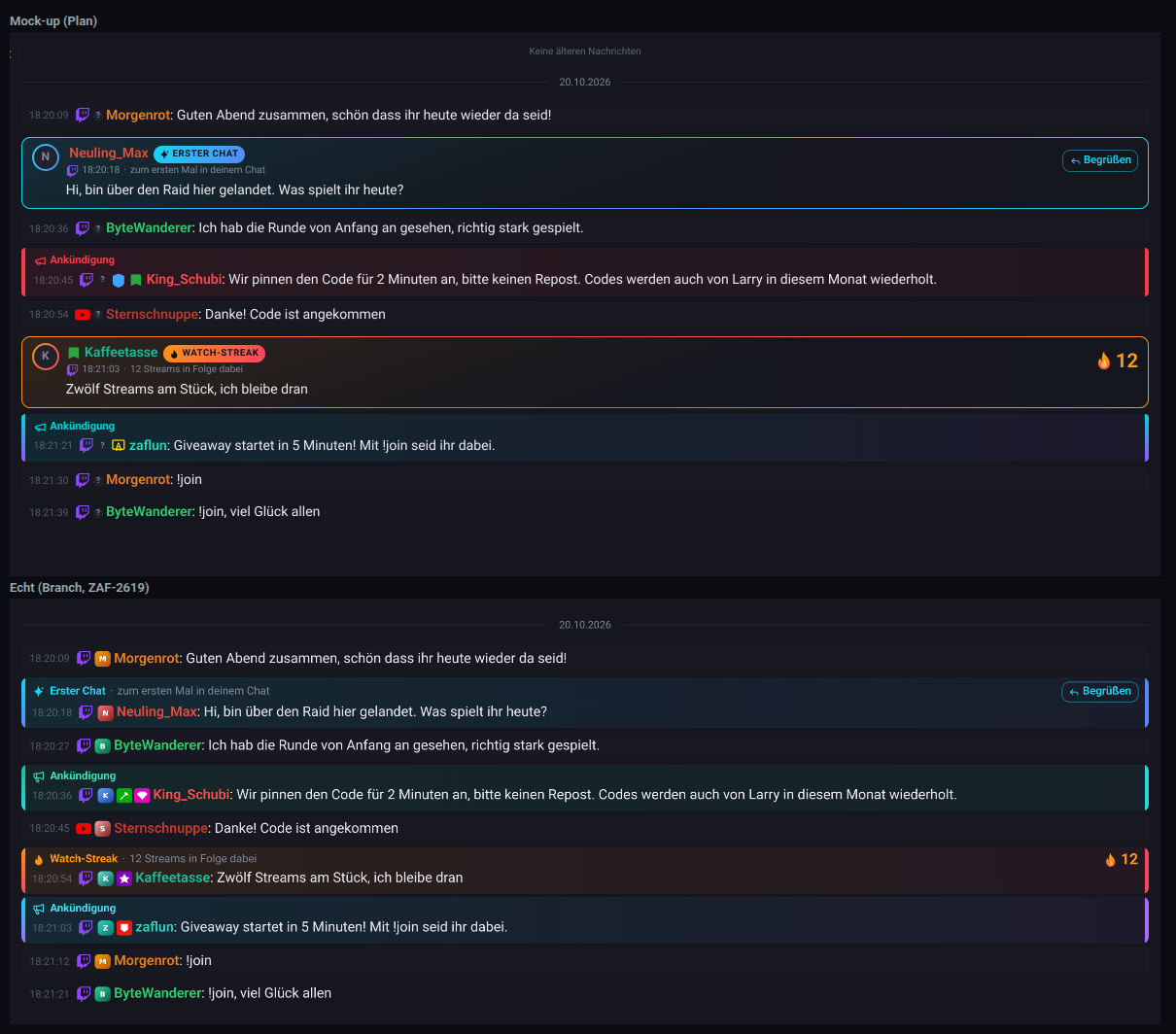
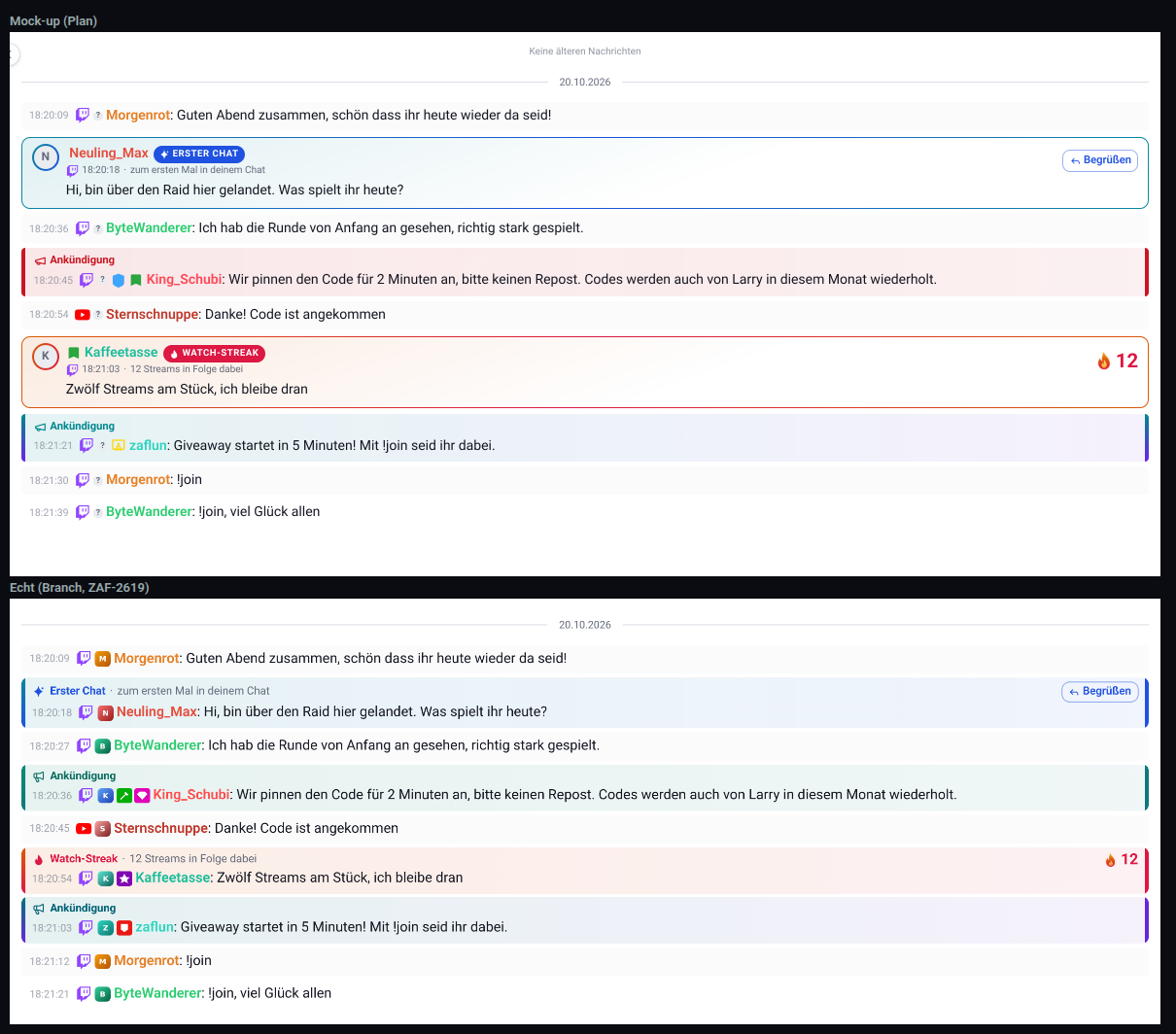
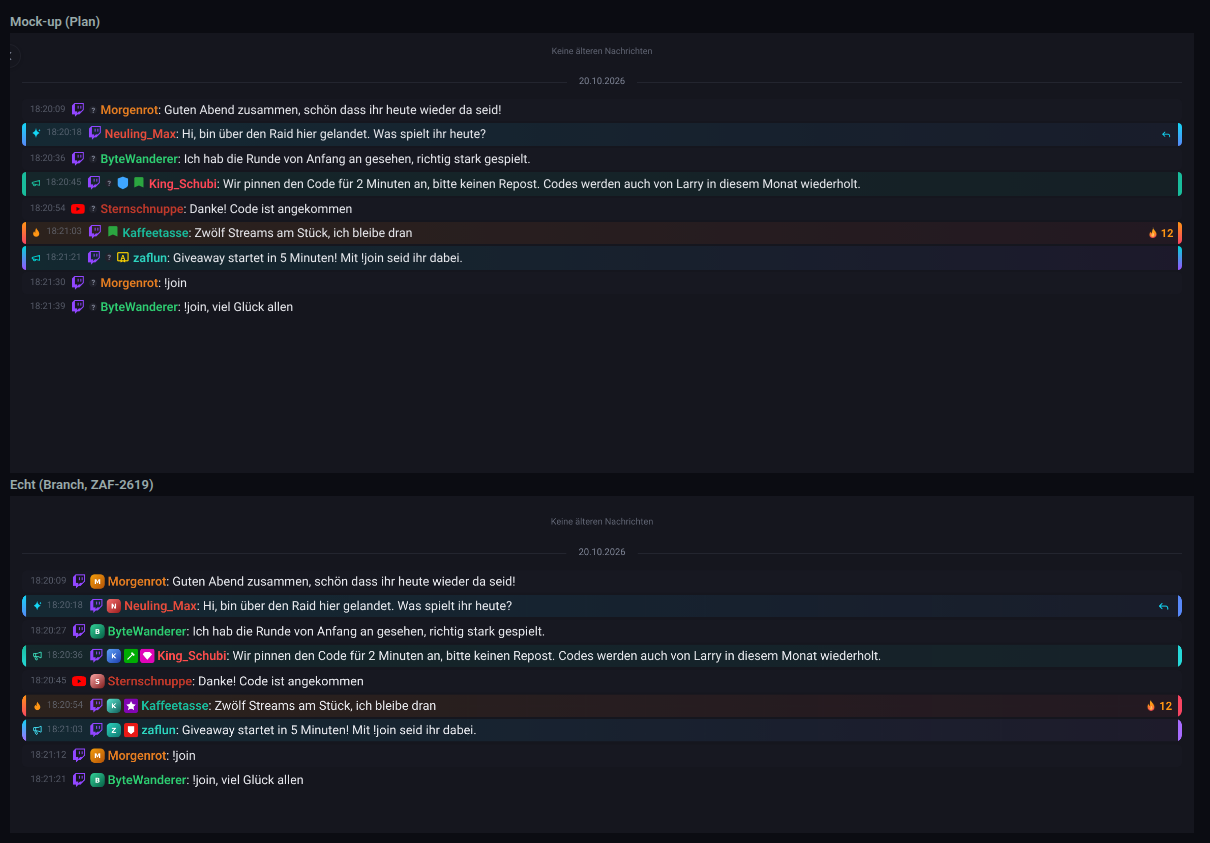
Two moments have a spotlight row with a coloured edge and soft tint. In full density, the type and hint sit above the message; the platform icon, time, avatar, badges and name follow the normal chat settings.
- First-time chatter (Twitch) - a blue edge and First chat heading,
followed by the viewer's message and a Greet button when you can write.
Replies,
/memessages and deleted messages keep working in the row. - Watch streak (Twitch) - a warm edge, Watch Streak heading, streak count and the viewer's own message when present. Badges, name colour and avatar come with the event; older streak events from before this change simply show no badges, the default name colour and an initial instead of the avatar.
Greet a first-time chatter. The Greet button on a first-time-chatter card does two
things: it sets that message as your reply target (on Twitch and Kick a native reply, so the
viewer is notified; on YouTube the usual @Name is added when you send) and fills the chat box
with a greeting, cursor at the end. It never sends on its own - you can edit the text and send
it with Enter. If you already typed something, your text stays and only the reply target is set.
The button only appears when you may write in that chat.
The greeting is set in the chat settings, Events tab, field Greeting text:
- Untouched, it is the default in your Lumio language ("Welcome to the chat, {name}! Glad you're here" / "Willkommen im Chat, {name}! Schön, dass du da bist") and follows a language switch.
- Your own text is used exactly as written, whatever the language.
{name}becomes the viewer's display name. No@is added - the native reply already notifies them. - Empty means Greet only sets the reply target.
- Up to 300 characters; Reset to default goes back to the language default. The field travels with presets and settings transfer like every other chat setting.
Hover actions. Both cards carry the same hover bar as a normal message, also reachable with the keyboard (Tab into the card). On a first-time-chatter card it is exactly the message bar: reply, copy, delete and the moderation menu. On a watch-streak card it offers copy (when there is a message) and the moderation menu (timeout and ban, monitor, restrict), under the same permissions as on messages. A watch-streak card has no delete: Twitch documents deleting only for chat messages, not for streak notices - a short timeout clears the viewer's messages instead. Older streak events without badge data offer no moderation at all, so a moderator is never shown a timeout button against another moderator.
Moderated viewers are not celebrated. If the viewer is restricted or monitored, the first-time-chatter message stays a normal row with the red/amber moderation styling and only a small First chat pill; the watch-streak card swaps its frame for the red/amber edge and its flame stands still.
Motion. A card arriving live enters once, quietly (a short fade-in, a soft glow and three small sparks around the pill; the streak count counts up). Cards loaded from history, after a reconnect, or when you scroll, filter or reload never replay that entry. The streak flame keeps a gentle flicker and pauses while scrolled out of view. With Reduced motion, the cards use a brief fade; at Off, they show their final look immediately. The seasonal "animations off" switch only affects the seasonal decoration, not these cards.
Density and width. With the global density Compact the card becomes a spotlight row: built like a normal chat line (time, platform icon, small avatar, badges, name, icon, message), only the frame makes it 2 px taller. The spotlight type is an icon with a tooltip, without a text label; Greet becomes an icon button. In a very narrow column the full card drops the hint text and Greet becomes an icon button.
These cards follow the Badges, Platform Icon and Timestamp settings like the rows around them. "Highlight Events" and the event-line Avatar/Label options do not apply to them - frame, avatar and spotlight mark are part of the card.
Creating and editing a rule
Rules are built in a full-screen, three-step assistant. Open it from the Filters tab of the chat settings (the New button) or from the + at the end of the chat's tab bar - both open the same assistant and produce identical rules. The assistant fills the whole chat window, so it works inside a pop-out too.
The three steps follow what does the rule match? → where does it apply? → how is it shown?:
- Rule - the rule's name plus its keywords and prefixes (both chip
fields: type a value and press
Enteror,). You cannot leave this step until the rule has a name and at least one keyword or one prefix. - Scope - the matching mode (anywhere vs. whole word) and the platform the rule applies to. Both have defaults, so you can pass straight through.
- Appearance - show the rule as its own tab, give it a highlight colour, and pick a notification sound (with a preview button). These come last on purpose: for a quick command tab you just press Next twice.
When you create a rule the assistant is linear - Back and Next, with the
finish button only on the last step. When you edit an existing rule the same
assistant opens with every step clickable in the progress bar and Save active on
every step, so you can jump straight to Appearance, change a colour, and save
without touching the other steps. Closing the assistant (the ×, Cancel, or
Escape) discards everything - a half-filled assistant never leaves a rule behind.
Keyword tabs and history
A keyword rule can also appear as its own tab above the feed - a filtered view that shows only the messages matching that rule. Keyword tabs behave like the main feed, with three additions:
- History back-fill. A keyword tab starts from what is still in the in-browser buffer, then pulls older matches from the server as you scroll up - the same infinite-scroll as the main feed, but querying the keyword search over the last 12 hours. Live and back-loaded messages are judged by the same matcher, so a message never shows in one place and not the other. If a fetched page happens to contain no visible match, the tab loads on automatically - capped, so a keyword with no recent hits never loops.
- History timestamps. Rows pulled from history always show their timestamp (even when timestamps are switched off globally), because for a keyword tab when something was asked is the point. A single divider separates the back-loaded history above from the live buffer below.
- A named end. When there are no older matches left in the window, the feed shows
No older matches in the last 12 hoursinstead of the scroll indicator simply vanishing. Because a keyword search is time-bounded and retention trims old data, reaching this end is normal.
Each tab keeps its own scroll position, unread divider, and jump-to-latest counter: switching tabs and back returns you to exactly where you were reading, and one tab's new-message counter never leaks into another.
Entering a keyword tab that has unread matches draws a new messages line at your
read boundary and lands you there, so the matches the badge counted are the first
thing you see. Leaving that tab counts as read: as long as you did not scroll
while it was open, the line does not come back when you return - unless new matches
have arrived since, which draw a fresh line. The preserved read position of the
other views is unaffected: scroll up to read history in All (or a platform tab),
switch away and back, and you return to exactly that spot with its divider intact,
because the messages below it there are genuinely still unread.
The tab bar
Platform tabs and keyword tabs share one row at the top of the chat. When there are more tabs than fit - many rules, or a narrow pop-out - the row scrolls sideways instead of wrapping onto a second line, so the chat never loses height to the tab bar. The + (new rule) and the gear (settings) sit outside the scrolling area and stay in place; everything else scrolls.
- On a mouse/desktop, a left and right arrow appear at the edges of the row only while there is more to reach in that direction, and a soft fade marks the scrollable edge. Click an arrow to scroll the row.
- On touch, there are no arrows - swipe the row sideways instead.
- The active tab always scrolls into view when you select it, and again after a reload restores your last tab, so the tab you are reading is never hidden off-screen.
- On narrow widths an inactive keyword tab collapses to just its colour dot and unread count to save room; the active tab keeps its label, and hovering a collapsed tab shows its name.
Reordering. On a mouse you can drag a keyword tab left or right to reorder it - a click still just selects the tab; only a small drag starts a move. Touch keeps the up/down arrows in the Filters settings list for reordering. Both write the same order, and it survives a reload.
Twitch Shared Chat
Twitch Shared Chat lets several channels run one shared chat - a message sent in another channel's room also appears in yours. Lumio recognises these cross-channel messages and shows which channel each came from, attributed by channel (the public broadcaster), never by viewer.
- Each shared-chat message row carries a square, rounded-corner origin channel avatar after the Twitch icon and before the badges. Its ring has that channel's colour; the avatar stays on older messages after a channel leaves. YouTube and Kick rows have no origin avatar.
- The Shared Chat bar appears below the tabs as soon as a session starts, even
before a partner writes. It shows the Twitch icon, the host first with a crown,
your channel next, then partners in joining order (up to four avatars and
+N), live status and Summe aller Kanäle. It appears in All and Twitch; YouTube, Kick and keyword tabs show neither the bar nor Shared Chat session event lines. The tabs themselves have no channel avatars. - Open the bar for a scrollable channel list with categories and viewers. Only this channel filters the chat locally; Open on Twitch visits that channel. Select a channel to see its card with live information, follower count when available and messages observed in this browser since session start. Escape returns from the card to the list, then closes it. Hovering a channel avatar with a mouse or activating it opens the same card directly.
- In an OBS popout the bar follows Show Header: with the header hidden, the bar is hidden too, while origin avatars and event lines remain. There is no separate Shared Chat bar setting. Show Chat Input does not affect the bar.
Start, join, leave and end appear as Twitch event lines at their event time. Start and end have expandable channel details in chat; the Events feed shows those details expanded. The ended bar gives the session duration and the number of all partners seen, including partners who left earlier, then closes after eight seconds. A reload or tab switch shows the current state without an entrance animation. Full motion animates fresh joins and departures and pulses the live dot; Reduced fades without movement; Off switches immediately. Your Chat/Events/Music motion choice can reduce motion further.
Events in a partner channel of the session - subs, resubs, gift subs, upgrades,
pay-it-forward, raids into the partner and Bits - show up in your chat and events feed
too. Each one carries a channel chip - the same channel-coloured origin avatar as a
shared-chat message plus the channel's name in a grey pill - directly before the event
icon, for example 12:04 · Twitch · avatar · [▢ KiraPlays] · Gift Sub · Nordfan_24 · 5× Tier 1.
A long channel name is shortened with …; hover the chip for "Happened in {channel}'s
channel (Shared Chat)", which screen readers also announce. The chip shows even when the
platform icon, the event label or the event avatar is switched off. Shared-chat
messages keep the bare origin avatar without a name, like on Twitch.
Partner events follow the same event filters as your own events of that type. To hide all of them at once, switch off Events from Shared Chat partners on the Events tab of the chat settings (on by default). Shared Chat start, join, leave and end stay visible with the switch off, and messages from partner channels are not affected (use Only this channel in the Shared Chat bar for that). The switch only changes what the chat shows. Partner events belong to that channel, so they do not count in your stream history, do not trigger your automations and never open one of your own alerts (raid countdown, hype train) above the chat.
Messages sent through a channel-points reward with text input carry an orange Redeemed with channel points chip after the badges, in your own chat and from partner channels (where the origin-channel avatar names the channel). Twitch does not send the reward's name or cost with the message, so the chip names neither.
Shared-chat display is automatic - there is nothing to enable, and it needs no extra permission.
Hide and highlight lists
The Filters tab of the chat settings (gear icon) carries four editable lists,
grouped under Hide and Highlight. Each is a chip field: type a value and press
Enter or , to add it, Backspace on an empty field removes the last chip, and
the × on a chip removes it. Every change is saved to your browser immediately and
survives a reload - including in a token pop-out opened without signing in.
The two user lists - Hidden users and Highlighted users - suggest matching
viewers as you type (from two characters on), drawn from the people your account has
seen in chat. Pick one with the mouse or the keyboard (↑/↓ to move, Enter or
Tab to take the marked entry, Esc to close) and the exact username is added -
so the rule keeps matching even after that viewer changes their display name. A rule
is not tied to a platform: one entry matches the same name everywhere you are
connected, and a name seen on several platforms appears once. The suggestions need
the View user info permission; without it - or if the lookup is briefly
unavailable - the field simply lets you type the name in by hand, exactly as before.
The Command prefixes and Hidden words lists are word lists and do not suggest.
Under Hide:
- Hidden users - messages from these users are hidden. The match is case-insensitive against the username and the display name.
- Command prefixes with a Hide commands switch - while the switch is on,
any message whose text starts with one of these prefixes is hidden.
!is pre-filled; add your own (for example#or?) or remove them. The switch is the master toggle - with it off, the prefixes are ignored. - Hidden words with a Whole word only switch - messages containing one of
these words are hidden. By default the word matches anywhere in the text; turn on
Whole word only to match on word boundaries instead (so
artno longer hidesstart).
Under Highlight:
- Highlighted users - messages from these users get a highlight colour, matched the same way as the hidden-user list. Each highlighted user has its own colour, edited from the colour button on the left of the chip - a small pill showing the current colour and a pencil icon. Clicking it opens a colour dialog with a Highlight switch, the colour picker, a Default colour option, and a live preview of a chat line in the chosen tone. Leave the switch on and keep the default to use the standard highlight colour, pick a colour for a custom one, or switch it off to keep the name in the list but stop highlighting it (the chip then reads dimmed, with no colour dot). Changes apply only when you press Apply; Cancel discards them. This highlight overrides the automatic mod/VIP row colouring - a highlighted moderator's row shows the highlight colour, not the mod colour - while their mod/VIP badges stay visible. Choosing a custom colour only changes how the row looks; it does not change priority - the highlight still ranks below a self-mention, a keyword-tab colour, and any moderation treatment, and it follows the same border/background highlight style as the rest of the chat.
- Notification sound - one built-in sound that plays when any highlighted user
sends a message. Pick a sound from the dropdown - twelve built-ins grouped by
character (
Chime,Ding,Marimba,Pop,Blip,Soft,Bubble,Click,Knock,Alert,Arpeggio,Cascade) - or leave it onNo sound. Every row has its own play button, so you can preview each sound right in the open menu (it plays the row you click without changing your selection or closing the menu), audible even when the volume slider is at0. All twelve are loudness-matched, so switching between them does not jump in volume. This is one sound for the whole highlight list - not a separate sound per user. A switched-off highlighted user is silent, exactly as their row is no longer coloured. If a message both belongs to a highlighted user and matches a keyword rule that has its own sound, the keyword rule's sound wins - the same order as the colour cascade. The shared Notification volume slider and its 1500 ms anti-spam gap cover this sound too, so there is no second volume control and no double-ringing.
A message you sent yourself is never hidden by these lists, and a message under a
Monitor or Restrict moderation treatment always stays visible with its
treatment marking, regardless of the hide lists. A keyword-tab match also shields a
message from the hide filters, so a !frage tab is not blanked by the default !
command prefix.
Hidden and deleted messages
Filter-hidden messages are only hidden in your Lumio view. They are not deleted
from the source platform and they are not written as moderation actions. By default
a matching message is removed from the feed entirely - the row does not appear
at all. If you would rather keep a placeholder you can click to expand and moderate
what the filter took away, switch Hidden Messages to Show placeholder. A keyword
rule's own tab also shields its matching rows from the hide filters so the tab does
not immediately hide the messages it was created to collect.
Deleted messages are different: Lumio marks a row as deleted when it receives a platform deletion event or when a delete/ban/timeout action succeeds in Lumio. Twitch and YouTube deliver individual message deletions to Lumio, including moderator deletes and YouTube author retracts. A message deleted on kick.com (by a moderator or by Kick's AutoMod) reaches Lumio through Kick's unofficial chat connection, so it is greyed out too - on a best-effort basis, since Kick offers no official event for it. Kick bans and timeouts always sweep the user's messages. The Deleted Messages setting only controls rows Lumio has actually received as deleted, and it affects the live Multichat feed only; the User Info Card still shows deleted rows in that user's message history with a muted deleted style.
A deleted row is attributed to whoever removed the message. For a Twitch
moderator delete the acting moderator's display name is shown ("Deleted by
{name}"): Twitch's single-message delete event omits the moderator, so Lumio
sources the name from the richer channel.moderate event and reconciles the two,
correcting the live row the moment the moderator is known. YouTube moderator
deletes stay attributed generically ("Deleted") because YouTube's delete payload
carries no moderator identity to source a name from.
Notification sounds
Lumio plays a notification sound from two sources: a keyword rule that
matches a message, and the highlighted-user list (see Hide and highlight lists
above). In each case, pick one of twelve built-in sounds - grouped by character
from soft to attention-grabbing (Chime, Ding, Marimba, Pop, Blip, Soft,
Bubble, Click, Knock, Alert, Arpeggio, Cascade) - or leave it on
No sound. Each row in the dropdown has its own play button that previews that
sound in place, without changing the current selection, so you can audition the whole
catalog without picking blindly. The sounds ship with Lumio - there is no upload - and
are all loudness-matched, so switching between them never jumps in volume.
- A keyword rule's sound plays on any live match, regardless of whether the rule is shown as a tab - a rule set to highlight-only (no visible tab) still rings.
- The highlight-list sound plays when any switched-on highlighted user posts. It is one sound for the whole list, not one per user.
- If a message matches both a sound-carrying keyword rule and a highlighted user, the keyword rule's sound wins - the same priority as the colour cascade - and only one sound plays.
- A sound only plays for a message you can actually see. Hidden messages do not ring:
a message removed by your hidden-user or hidden-word lists is silent, even if its author
is also a highlighted user - you cannot get a chime for a line that never appears. The
reverse holds as well: anything the feed shows can ring, including your own messages
(so you can test a rule by posting the keyword yourself) and messages from users under a
Monitor/Restrictmoderation treatment. (A keyword-rule match still shields a message from the hidden-word list, so such a message stays visible and rings.) Sounds from a platform or keyword tab you are not currently viewing do still play - the chime is the cue to look there. - A single Notification volume slider in the chat settings' Filter tab controls
the volume for both sources; set it to
0to mute every notification sound. - Rapid matches are rate-limited, so a burst of matching messages plays at most one sound at a time rather than a wall of overlapping beeps. A sound the browser refuses to play does not consume that gap - the next match can ring immediately.
- Sounds work the same in the pop-out chat, including a token pop-out opened without signing in.
- Browsers only allow audio once you have interacted with the page, so Lumio enables
playback on your first click or keypress anywhere in the chat. If a sound is still
refused - most often in a pop-out window parked on a second monitor that you never
click into - a
Your browser blocked the notification sound./Enable soundbar appears above the feed. One click on it both explains the silence and turns the sound back on; it disappears as soon as playback is allowed. Every window has its own permission, so a pop-out needs its own click even when the dashboard already rings.
Platform toggles and YouTube multi-stream
The platform-icon row at the top of the feed lets you enable/disable each platform for reading and sending independently. YouTube gets an extra dropdown for broadcast selection:
- All Broadcasts shows messages from every YouTube broadcast (current and historical).
- Selecting a specific broadcast filters the chat feed to show only messages from that broadcast's
live_chat_id. Messages from other platforms (Twitch, Kick) are always visible regardless of the YouTube broadcast filter. - Outgoing messages are sent to the selected broadcast. Replies always target the original message's broadcast.
- The dropdown works in both the dashboard and the popout chat window (browser source).
Reconnect required
If a platform's OAuth connection expires and needs reconnecting, that platform
keeps its tab (it is never silently dropped) and shows a
reconnect-required marker in place of its live counts, in both the dashboard
and the popout. This is a per-platform OAuth state and is deliberately kept
distinct from the WebSocket Connection lost - reconnecting… notice, which is
about the live chat socket rather than a platform grant. Reconnect from
Account → Profile or Connections; see
Connections → Reconnect flags.
When a platform you can send on needs reconnecting, the
connection notices under the header say so before a send fails -
one entry per affected platform, paged with ‹ › when there are several. This
covers both an expired channel connection and an expired personal login
(the login you actually send with); they are two separate entries because they are
repaired in different places. A dead personal login entry is red, comes first and
sends you to Account → Profile; a dead channel connection entry starts the
platform's OAuth flow when you may reconnect channels (connections:create), and
otherwise - for a Moderator who can send there - links to the Connections page.
The notices sit in the normal layout: they shorten the message feed and never cover
chat messages, and a chat scrolled to the bottom stays at its newest message while
they appear, change or disappear. The affected platform's send toggle is disabled so
you cannot accidentally send a message that would just fail. In a delegated pop-out
(a shared token window, not your own login) the entries have no button, because a
guest cannot repair the connection, and the login-assignment notice is not shown.
With the pop-out header hidden but the input visible, only the notices that concern sending (expired login or channel on a platform you can send on) appear, compactly, directly above the message input. With header and input both hidden nothing is shown, so a browser source never composites a notice into the stream.
If a send still fails, the failed-send notice shows a plain, translated message - for a dead personal login it shows the reconnect line and a Jetzt neu verbinden button that opens Account → Profile; a message the platform itself refused (for example slow mode, a ban, or blocked content) shows "Platform rejected the message."; an internal Lumio error shows "Lumio could not send the message - please try again."; any other failure shows only "Send failed" with the status code. Every failed message keeps a Retry send and a Dismiss control. The raw server error is never shown.
New permissions available
When Lumio starts requesting a scope that an existing connection was granted
without (for example Kick's KICKs and channel points), the connection keeps working
but those events cannot arrive until you reconnect it. The Chat page then shows an
amber needs new permissions entry in its connection notices,
with a Grant {platform} permission button that starts the same OAuth flow as the Connections page
(from a popout window it opens in a new tab). Only chat platforms appear here. The
entry is only shown to members who may reconnect channels (connections:create),
and a connection that already needs a reconnect (above) shows only that entry. The
Events page shows the same entry; see
Connections → Missing scopes.
Alerts overlay
When a mod-facing event fires, a compact alert card pins to the top of the feed so you can act from the same screen:
- Raid incoming - shows the raider and viewer count, with quick links.
- Raid outgoing - the
Cancel Raidbutton stays visible until the raid fires or Twitch reportsraid_done/unraid. - Ad break - shows the duration and whether the break was
Automatic. - Hype Train - live progress and
Hype Train Completesummary at the end. - Polls - running totals per option with an
End Pollshortcut. A YouTube poll shows its question and each option's share of the votes, with the vote count when YouTube sends one (its InnerTube feed sends only the share). The card updates on every vote, turns ended when YouTube closes the poll, then disappears after 90 seconds. It has noEnd Pollshortcut: Lumio can end Twitch polls only. - Predictions -
Lock, pick aWinner, orCancel (Refund)from the card.
These shortcuts appear only with the relevant chat permission (chat:raid,
chat:poll, chat:prediction). The broadcaster's channel connection token
performs the action, including from a popout; a popout token's own permissions
determine which buttons its viewer sees. A failed action leaves the card in
place and shows an error. TWITCH_CHANNEL_RECONNECT_REQUIRED includes a hint
to reconnect the Twitch channel.
Alerts survive a page refresh. The alert box remembers the cards that are
currently on screen - a hype train, ad break, poll, prediction, or outgoing raid -
so a reload or navigating away and back no longer wipes them. Countdowns are anchored
to absolute end times, so an ad break or raid resumes with the correct remaining
seconds instead of restarting. A restored card looks exactly like a live one - there is
no extra badge or marker - and its numbers are the last ones this browser saw until the
next live event updates them. Anything whose end has already
passed comes back ended (with its wind-down countdown) or not at all - never as
"still running" - and nothing older than a few minutes reappears. A card you dismiss
with the X stays dismissed across the refresh, and the dismiss also propagates to a
second open window (dashboard ↔ pop-out) within a moment.
If your storage was cleared, or you open the chat on a different device, Lumio
additionally replays the recent Twitch event history (the last 30 minutes) to
reconstruct a running alert - an ad break, poll, prediction, hype train, or outgoing
raid. This server replay needs the events:read permission: the dashboard and the
normal chat pop-out have it through your login, so both behave identically. An OBS dock
opened with a share token that does not include events:read simply skips the
replay and still shows everything that browser saw itself - it never errors and never
blanks the box. YouTube polls are remembered on the device that saw them but are not
part of the server replay.
Sending messages
The footer input supports:
-
Plain text -
Entersends,Shift+Enterinserts a newline. -
@mentions - autocompletes against recent chatters.
-
Emotes - click the smiley icon to open the Emote Library: Recently Used, then one section per channel (Twitch and Kick alike, each labelled with the streamer's name and avatar), then 7TV/BTTV/FFZ, then Twitch Global, YouTube Global, Kick Global and Kick Emojis. The platform tabs above the grid narrow it to one platform; the Kick tab shows only your connected Kick channels' emotes, Kick Global, Kick Emojis and the 7TV/BTTV/FFZ emotes of those channels. Kick has no way to list the emotes of other Kick channels you are subscribed to, so those do not appear. Kick emotes that only the channel's subscribers can use carry a small lock and the tooltip
Subscribers only. Clicking an emote inserts its name into the input; when the message goes to Kick, Lumio sends every known Kick emote name as a Kick emote. Search with the placeholderSearch emotes…. The emote goes where the cursor is in the message field (at the end if you never clicked into it), and the cursor moves behind it, so several emotes land in the order you pick them. Lumio adds a space before and after an emote only where one is missing, so it never sticks to a word and never leaves a double space. The library stays open after an insert; close it with theX, the smiley icon orEscape.Narrow windows and phones. In a window up to 480 pixels wide (a narrow chat popout, OBS docks, phones) the library opens as a bottom sheet across the full width, right above the message bar. The message bar stays visible and usable: you can see what you typed, click into it, keep typing and send while the sheet is open. The chat above the sheet is dimmed; tapping it closes the sheet. The sheet is 60 % of the window high. Drag the grip at its top to make it taller or smaller (with the mouse or a finger, or focus the grip and use the arrow keys); Lumio remembers that height on this device, and a double click or double tap on the grip resets it to 60 %. Drag it down past its smallest size, swipe down quickly, tap the dimmed chat, use the
X,Escapeor your phone's Back button to close it. The platform tabs sit next to the search field and the section shortcuts run in a row under it. Wider windows keep the library as a panel above the message bar.On a phone with the on-screen keyboard. Opening the library closes the keyboard, so the sheet has its full height; the search field does not open the keyboard until you tap it, and then the sheet shrinks to 60 % of what is still visible. When you tap into the message field while the library is open, the keyboard opens and the library folds into one row of emotes right above the message bar: your recently used emotes first, then the rest in library order. Tap one to insert it at the cursor; the keyboard stays open. All (or dragging the grip up) closes the keyboard and opens the full library again. The message bar always sits directly on the keyboard, in the dashboard chat and in the chat popout, also when you switch between the search field and the message field.
-
Reply - click
Replyon any message; the input showsReplying to {name}with anXto cancel.
Sending requires the chat:write permission. The send toggles next to the
input show a platform only when both are true for the active account:
- the account has a channel connection for that platform, and
- one of your login connections for that platform is assigned to the account.
A login on its own is not enough - if you have a YouTube login but the active account has no YouTube channel, no YouTube toggle appears and nothing is sent to YouTube. Switch to an account that has the channel connected and the toggle returns (with your previously saved selection). A shown toggle is greyed out only while its connection needs reconnecting (see Reconnect required above).
Twitch AutoMod held messages
Twitch AutoMod holds some messages for a moderator instead of publishing them. With chat:automod-read, you see each hold at its original time in Multichat, with the sender, marked text and reason, such as a blocked link, blocked term or AutoMod category and level. The row shows the sender's avatar, name color and badges as Lumio last saw them when the message was held. If that look is unavailable, it uses the sender's latest chat row in the feed; a first-time chatter has the usual no-avatar placeholder and no badges. Your avatar, badges and compact-density settings apply to the held row too. With chat:userinfo, selecting the name opens the same user card as a regular chat message; without that right it remains plain text in every hold state. Twitch emotes and Cheers show their images and Cheer amounts, and 7TV, BTTV and FFZ emotes are matched from the channel's emote set. Links in held text are never clickable. The row shows how long it has waited; Twitch does not currently send Lumio an expiry deadline, so there is no countdown or expiry bar. Held text never goes to overlays or widgets.
Allow and Deny require separate chat:automod-allow and chat:automod-deny rights. The action uses your own Twitch sign-in, and you must be a moderator for the channel. A channel connected before the AutoMod scope was requested needs one reconnect. If your stored personal Twitch sign-in lacks moderator:manage:automod, the dashboard replaces the decision buttons on an open hold with Sign in with Twitch again and shows a connection notice. A member with only read access sees the hold without action buttons. Popout tokens can be granted these three rights independently; a popout keeps its Allow and Deny buttons, and a failed click shows an error toast. The backend refuses a decision with login_scope_missing before contacting Twitch when the missing scope is known.
An allowed message appears later as a normal chat message with a new Twitch message ID; the held row does not flash green. Go to message appears only when exactly one message from the same sender with identical text arrives within 30 seconds of the decision. A denied or expired hold is never published. A decision made on twitch.tv also resolves the row; if another moderator acted first, Lumio says your click came too late. After a reconnect, a hold that can no longer be found may say No longer open. If the queue cannot be read, the chat points you to twitch.tv. Lumio records allow and deny in the chat moderation log, with no separate audit event.
Holds survive a reload and appear when you scroll back: the chat history loads them at their original time. Open holds retain their decision buttons; resolved rows say who allowed or denied them, or that they expired. The name still opens the user card when permitted in open, allowed, denied, expired, conflict and read-only states. History rows require feature:multichat, chat:read and chat:automod-read; with history:read you see holds across the account's chat retention window, without it the last 24 hours. Members, user and service keys, and popout tokens follow the same window rule.
This queue is Twitch-only and uses EventSub and Helix, not Twitch IRC or PubSub. Kick AutoMod deletes immediately; Lumio attributes that deletion to Kick AutoMod, but there is no Kick queue or Allow/Deny action. Held messages can be reviewed later in the private Stream History AutoMod tab, subject to its retention.
Moderation actions
Hovering any message reveals a chevron that opens the Moderation dropdown. Lumio enforces a role hierarchy (broadcaster > lead moderator > moderator > user) so moderators cannot act on the broadcaster or peers.
What each platform supports
Moderation actions depend on what the platform's API allows. Actions a platform cannot perform are greyed out in the dropdown and the user info card, so you can see the limit before you click:
| Platform | Delete message | Timeout | Ban |
|---|---|---|---|
| Twitch | ✅ | ✅ | ✅ |
| YouTube | ✅ | ✅ | ✅ |
| Kick | ✅ | ✅ (up to 7 days) | ✅ |
The same table applies to the dropdown and to the User Info Card, whether you open the card from a chat name or from an event row. Treatments (monitor / restrict, below) are Lumio-native and work on every platform regardless of this table.
Timeout limits. Kick accepts timeouts in whole minutes up to 7 days (10 080 minutes), Twitch up to 14 days. A longer custom value is not shortened silently: the timeout button stays disabled and a hint shows the platform's longest timeout.
Kick moderation uses your Kick login. Lumio moderates Kick with your personal Kick login, so that login must include Kick's moderation permissions. If you logged in with Kick before Lumio asked for them, a Kick timeout, ban or delete shows "Kick has not allowed Lumio to moderate yet - log in with Kick again". Open Account → Profile, click Reconnect on your Kick login connection (or sign in with Kick again) and approve the moderation permissions once. If you are not a moderator in that Kick channel, Lumio says so instead.
If a moderation action fails for any other reason - an expired login or a platform rate-limit - Lumio shows an error message with the reason and leaves the user's messages in place. It never pretends a failed ban succeeded.
Delete a single message
Click the trash icon or Delete in the menu. Deleted messages show
Deleted message in-place so the context of a conversation remains visible for
other mods. Requires chat:delete.
Timeout
Presets: 1min, 5min, 10min, 30min. Pick Custom timeout… for any duration
in minutes, up to the platform's limit (see above). Every timeout opens a confirmation
dialog:
Are you sure you want to
Timeout 10min{name}?
Requires chat:timeout.
Ban
The Ban user button is destructive and always requires confirmation. Bans are
permanent until reversed on the source platform. Requires chat:ban.
Treatments (monitor / restrict)
Lumio-native moderation flags that travel across platforms:
- Monitor user - flags the user; their messages get a subtle amber badge and mod notes are surfaced.
- Restrict user - stronger warning; messages get a red badge and are down-weighted in alerts.
- Remove treatment - clears the flag.
Treatments are stored in Lumio, not on the platform, so they work on every platform, independent of what its moderation API supports.
Raids, polls, and predictions
The alerts overlay surfaces Twitch raids, polls, and predictions as they happen and lets you act on the one in progress:
- Cancel a pending raid - requires
chat:raid. - End an active poll - requires
chat:poll. - End or cancel a prediction - requires
chat:prediction.
Lumio does not start raids. It surfaces ongoing polls and predictions and lets
permitted viewers end or resolve them. A raid card also disappears when the
replayed raid_done or unraid event ends it after a reload.
User Info Card
Click any username (in chat or in the event feed) to open the user's card. It opens as a
full-page view over the dashboard: a thin line in the platform's colour runs along the
top, the platform's colours tint the background, and the page behind stays faintly visible
through a slight blur. Close it with the X in the top-right corner or Esc.
Layout. The header always shows the avatar, display name (with a Partner /
Affiliate badge where the platform has one), the user's chat badges, @username and the
platform ID (click to copy; hidden in streamer mode), plus
Open Profile and Refresh profile data. On a wide screen the body splits into two
columns: on the left, who the user is (profile facts, treatment status and the action
buttons, which stay in view while you scroll); on the right, what they did (the tabs, at
full height). On a narrow screen and in the popout chat (e.g. an OBS dock) everything
stacks into one column: header, actions, then tabs.
Profile facts and actions:
- Follower /
Not followingbadge withFollowing since {date}. - Follower count - how many followers the user's own channel has, in compact form in
your language (e.g.
12K followers,1,5 Mio. Follower). Twitch only: YouTube and Kick profiles, and Twitch profiles whose data has not been fetched yet, show no follower-count line. - Account created and last updated dates, the user's message count and when Lumio first saw them.
- Bio (where the platform exposes one).
- Treatment status -
Monitored/Restricted, and which moderator set it. - Moderation actions - Monitor, Restrict, remove treatment, Timeout and Ban,
subject to your permissions and the platform (see below).
Timeoutexpands the duration choices (1mto1d, or a custom value in minutes or hours) right under the buttons;Esccollapses them again. A custom value above the platform's longest timeout (Kick 7 days = 168 hours, Twitch 14 days) is refused with a hint. Kick timeout and ban work here exactly as in the dropdown, from the chat card and from an event row alike. Every action asks for confirmation, and the confirmation appears on top of the card. - Tabs:
Messages- recent messages by that user in this channel, with the same moderation controls as the live feed. Links in these messages - including deleted ones - are clickable and open through theExternal Linkwarning, which appears on top of the card;Esccloses only the warning (or the confirmation) and leaves the card open.Mod Notes- private notes shared with your mod team. Create, edit, and delete withchat:notes. Great for tagging repeat offenders or regulars.Events- every event this user has triggered (follows, subs, cheers, raids, superchats, tips).
- Moderation History - timeline of bans, unbans, timeouts, deletions, and
treatment changes, each annotated with
by {moderator name}. Timeout lengths show up to two units, e.g.10m,1h 30mor1d 12h. - Currently Banned - shows
Banned on {date}if the user is still banned on this platform. - Open Profile - deep link to the user's page on the source platform.
- Highlight / Hide - one-click shortcuts to the Highlighted users and
Hidden users filter lists (see Hide and highlight lists),
to the left of the moderation buttons. They write the same name-based rule the Filters
tab does, so the change also shows up there. Both rules are cross-platform: the
button hides or highlights that name on every platform (and any same-named account
elsewhere) - the button tooltip spells this reach out, which is why the buttons carry
no platform icon. Each button toggles: click again to remove the rule (or, for a
highlight you had switched off in the Filters tab, to switch it back on). While a
user is hidden the Highlight button is disabled - hiding wins over highlighting.
Hiding removes all of that person's messages from the live feed at once; the button
flips to Hidden ✓ so you can undo it, and the
Messagestab notes that you are still looking at their history even though the live feed dropped them. These buttons appear only in the chat's card, not when the card is opened from an event row.
Requires chat:userinfo (or events:userinfo when opened from an event row).
Popout chat for OBS
/popout/chat gives you a borderless chat window perfect for an OBS browser
source, a Stream Deck, or a secondary monitor. The same moderation tools are
available subject to the token's permissions.
- Create a popout token under Settings → Channel → Access → Popout Tokens and copy it.
- Open
/popout/chat?token=YOUR_TOKENin OBS as a custom browser dock, or in a secondary browser. The seasonal look also shows in this popout; append&season=off,&seasonStrength=subtleor&seasonMotion=offto the URL to change it for this popout only. - Use the Settings cog (top right) to configure:
- General:
Font Size,Emote Size(a0.5×-2.0×scaling factor for inline emotes, shown as a factor next to the slider),Density(FullorCompact; sets the line spacing for both message rows and the inline event lines, andCompactalso shrinks the whole chat slightly - see below),Timestamp,User Badges,Platform Icon,User Avatars,Deleted Messages,Show GIFs(render Twitch GIF-keyboard GIFs; on by default - off loads nothing from GIPHY),Show Header,Show Chat Input, the Viewer list section (on/off, position, width, font size - see Viewer List),Highlight Events,Theme, and a Region & language block (language, time zone, date format, and time format). The Region & language block is a second entry point to the same global user preference as Dashboard → Settings; it applies everywhere you sign in, not just to this channel, and a hint says so. In a token-authenticated popout it is read-only with a pointer to the settings page. - Events: a
Show Event Linesmaster switch at the top (turns the inline event lines off at once, leaving the per-type selection below untouched - except the first-message marking and the Watch Streak, which always stay visible), the Greeting text for the Greet button, then how the inline stream-event lines look (Avatar,Icon,Timestamp, andLabel; icon and timestamp inherit the chat's own setting until you set them here), and a per-type visibility list grouped by platform, where each platform heading is itself an on/off switch for that whole platform's event lines. Every event type is on by default - untick the ones you do not want inline, or switch off a whole platform at its heading (the always-visible types have no toggle). Twitch, YouTube, Kick, and Spotify groups appear when the account has the corresponding channel connection; StreamElements appears when a StreamElements token is stored. Discord, Shopify, 7TV, Copyright, and System do not depend on these connections. If Lumio cannot read a connection or token status, its group stays visible (for example, StreamElements remains listed for a moderator withoutse-tokens:read). Disconnecting a platform does not erase its saved switches or its older event lines from chat history. - Filters:
Hidden Messages(Remove entirelyby default, orShow placeholder), the Hide and Highlight lists (hidden users, command prefixes with aHide commandsswitch, hidden words with aWhole word onlyswitch, and highlighted users each with a per-user colour that can also be switched off, plus oneNotification soundfor the whole highlight list),Notification Volume, and the keyword-rule list for editing, reordering, or deleting keyword tabs.
- General:
Show Header also controls the Shared Chat session bar. Hiding it does not hide the origin avatars or Shared Chat event lines, and there is no separate Shared Chat bar switch. Display settings are stored per browser, so each popout window keeps its own look. Chat filters and keyword tabs are stored per account and are also mirrored so a token-authenticated popout picks up the same filter setup without a signed-in session.
Which account and user a popout represents. A popout is tied to the Lumio account and member that its token belongs to. A token you assigned to a specific member acts as that member; a token left on Yourself acts as you, the member who created it (or who last removed its member assignment). That pairing — fixed by the token, not by anything the popout can see on screen — decides whose channel settings the popout loads for the account.
Animations for this view
Open the settings gear and choose Animations → As global, Reduced, or Off. The choice affects this view on the dashboard and in its popout, and is stored per browser and per user/account pair. It can only reduce motion further than your global Animations in Lumio preference; an unavailable looser choice is disabled. For an OBS popout, append &motion=reduced or &motion=off (use ? if it is the first URL parameter) to apply a stricter choice to that URL without saving it. The global preference is read-only in a token popout.
Live 7TV changes get a brief tint and emote/name motion at full speed. Reduced keeps only short fades; Off shows the final line immediately. History and reconnect gap-fill never animate.
Where these settings apply
These settings apply to you on this account. Every Multichat setting is kept in your browser (there is no server copy) and keyed to the pair (you, the channel account you are viewing) — never global, never shared across the accounts you can switch between, and never shared between team members of the same account. This covers all of them: the display options (font size, emote scaling, row density, whether timestamps, icons, avatars and badges show, the highlight style, how hidden and deleted messages look, GIF playback, and the inline stream-event controls — the event types shown, the on/off switch, per-platform toggles and their density) and the channel-facing ones (your hide and highlight lists, keyword tabs, the running alerts overlay, the selected send platforms, and the active platform tab).
- A different channel account starts empty. Switch to a second account and these settings start from defaults — a fresh channel never inherits the viewer names or keyword rules you set on another one.
- A different team member starts empty too. Each member on the same channel account keeps their own view, keybinds and filters; your settings are never applied to a teammate.
- The pair is resolved before anything loads, so nothing flickers and no setting is ever written under the wrong account — a dashboard resolves it from your session, an OBS popout from its popout token's account and user.
To reuse a filter list on another channel or hand it to a teammate, move it deliberately with Export / Import or a preset; there is no automatic copy between pairs.
Save and transfer your settings
Because chat settings live in your browser, they exist only on the device (and browser profile) where you set them. That is a problem when you set up an OBS browser source, move to a second computer, clear your site data, switch accounts, or want a teammate to use the same filter list. Transfer settings solves this without any server.
Open the Settings cog, go to the Presets tab, and use the Export / Import buttons below the preset cards (available in the dashboard and in every popout). On a plan without the presets feature there is no Presets tab, so the same Export / Import buttons appear at the bottom of the General tab instead.
Export - tick the sections you want (grouped Chat / Events / Music); sections with nothing saved are greyed out. You can export settings from other surfaces too - e.g. export your Events and Music settings from the chat panel. There are four ways to take them with you:
- Copy code - a single
LS1…line you can paste into Discord, WhatsApp or an email. This is the easiest way to send settings to someone else. Its length is shown next to the button. - Copy link - a share link (
…/dashboard/chat#s=LS1…) that carries the same code in its address. Opening it on any device signed in to Lumio lands in that feature's settings with the import preview directly, no typing. Both the code and the link update live as you change the selection. Very long links can be broken up by some messengers - for those, use Copy code or the file. - Copy JSON - the raw JSON on your clipboard, handy for support or hand-editing.
- Download - a
lumio-settings-YYYY-MM-DD.jsonfile. Best for a backup.
Import - pick a file, drop it onto the dialog, or paste a JSON file, an
LS1… code, or a share link into the one input field (Lumio detects which it is
automatically - a pasted link is reduced to the code it carries). A
preview lists every section it found and shows what each one will replace
before anything is written. Choose which sections to apply, then confirm.
Import replaces a section wholesale - it does not merge with what you have. The
page reloads after import so every view picks up the new settings.
What can be transferred: chat display, chat filters, keyword rules, events display, event filters, and music display. What is not included: your theme, your Region & language preferences (language, time zone, date and time format), streamer mode, active account, the currently selected platform/tab, and emote caches - those are device, user, or account properties, not feature settings.
The code, link, JSON and file are reversible plain text - not a hash and not encryption. If you selected chat filters or keyword rules, they contain the viewer names you personally hid or highlighted, and your keyword lists. That is fine as a backup, but anyone you send the code or link to gets those names too.
Importing something from a newer version of Lumio, an incomplete/truncated code, or anything that is not a valid Lumio settings file or code, is refused with a clear message - nothing is half-written.
Presets
Where Transfer settings moves settings between devices without a server, Presets save named snapshots to your Lumio account so you can switch layouts and reuse them across devices. Open the Settings cog and pick the Presets tab.
- New preset opens a full-screen assistant: choose which of your current settings to store, then name it (and optionally mark it as your default).
- Each saved preset is a card with Load (apply it here - the page reloads), plus icons to share it, overwrite it with your current settings, rename it, or delete it. Overwrite and delete ask for confirmation first.
- Share opens a dialog to copy a code or share link for that preset (the same
transport as Export/Import), and - with the
presets:sharepermission and an active account - a switch to make the preset visible to every member of the account. Members can then load it; they can't edit, delete or re-share it. - A Shared from the channel section below your own cards lists presets teammates have shared into your account. You can Load them or Save as your own preset (which copies it into your list); loading one does not count against your quota.
- A quota line shows how many presets you have used of your plan's limit (only your own presets count).
Presets are per user and filtered by surface, so the Multichat Presets tab shows only chat presets. In an OBS popout you can load a preset but not create, change or share one - presets are authored in the dashboard. See the Setting Presets feature page for the full details.
Permissions
| Permission | What it unlocks |
|---|---|
chat:read | View the Multichat feed and the popout |
chat:write | Send messages from Lumio |
chat:delete | Delete individual chat messages |
chat:timeout | Timeout users (preset and custom durations) |
chat:ban | Ban users |
chat:userinfo | Open the User Info Card |
chat:notes | Read and write mod notes |
chat:raid | Cancel a pending raid |
chat:pin | Pin, re-time and unpin Twitch chat messages |
chat:poll | End an active poll |
chat:prediction | End or cancel a prediction |
chat:refresh_user | Manually refresh a user's platform profile from the User Info Card (once per 10 minutes per user) |
The broadcaster / moderator hierarchy applies on top of these permissions -
moderators cannot delete the broadcaster's messages even with chat:delete, for
example.
Tips & best practices
- Use treatments instead of escalating immediately.
Monitor Userlets you keep an eye on borderline chatters before committing to a timeout or ban, and the badge stays visible across platforms. - Add mod notes the moment a user does something worth remembering. Future you (and every co-moderator) will thank you.
- Separate popouts for your team. Give each moderator their own scoped token
with
chat:delete,chat:timeout, andchat:banbut notchat:notesif you want to keep notes private to a smaller circle. - Keep the alerts overlay visible during events. The raid/ad-break/hype-train cards are context you cannot get from the native platform dashboards without tab-switching.
- Emote search is fuzzy. Type the first few letters to narrow huge emote collections like BTTV/7TV channel sets.
Troubleshooting
Messages appear only from some platforms
- Check the platform toggles at the top of the feed - a toggled-off platform is hidden.
- Check the Filters tab in the Settings cog. A hide-user, hide-command, or
hide-word rule removes matching rows from the feed entirely by default (or
collapses them into a placeholder if you switched
Hidden Messages). - Open Manage → Connections and confirm each platform shows a green Connected badge.
- For YouTube, make sure the dropdown on the toggle includes the stream IDs you expect.
Connection lost - reconnecting… banner
The WebSocket dropped. Lumio reconnects automatically with exponential backoff. If it persists, your token is probably expired - log out and back in.
Send box is disabled
You do not have chat:write, or you have no login/bot connection for the
currently-filtered platform. Check your role and confirm the bot connection under
Connections → the platform tab → Chat bot.
Ban / timeout silently fails
The target may outrank you - Lumio refuses to run a moderator action against the
broadcaster or (on Twitch) against a lead moderator from a regular moderator.
You will see Mod-only on Twitch or the button disabled on the dropdown.
Emotes render as plain text
The emote library has not loaded yet (check the loadingEmotes state) or the
channel does not have the relevant 7TV/BTTV/FFZ set linked. Click Refresh playlists in the popout, or reload the page to force a refetch.
External-link warning keeps popping up
Lumio deliberately intercepts outbound links with the External Link modal so a
single misclick cannot push a viewer to a malicious URL - in the live feed and in
the User Info Card's Messages tab alike. Approve only links you actually trust.
Related
- Events - shares the same WebSocket pipeline; mod-facing events surface in the chat alerts overlay.
- Roles & Permissions - how to design scoped mod roles.
- Connections - connect platforms and custom bot identities.
- Overlays - show Multichat on stream with the chat widget.